 haldraw
Vectorize
Old diagrams, editable again
Every organization has diagrams that survive only as scans, screenshots or photos. Redrawing them by hand is the reason they never get updated. haldraw reads the image and rebuilds it as real shapes and connectors, on a layer above the original, so you can compare, correct and carry on.
Import the image
New board From image…, drop a PNG or JPEG onto the library, or paste a screenshot with ⌘V. The image lands on a locked Reference layer that ignores clicks.
Press Vectorize
One click on the reference. haldraw sends the image to a Claude vision model using your own Anthropic API key, kept in the macOS keychain. About 15–30 seconds. This is the app's only network call.
Get a Draft layer
Shapes, text and connectors arrive on a Draft layer over the scan: process bubbles, entities, data stores, flows with their labels. Switch between Normal, Hide refs and Refs only to compare.
Touch up and export
Nudge a box, retype a label the scanner blurred, reroute a line. Hide the reference and export PNG, SVG or a
.haldrawboard. Or keep the scan underneath as provenance.
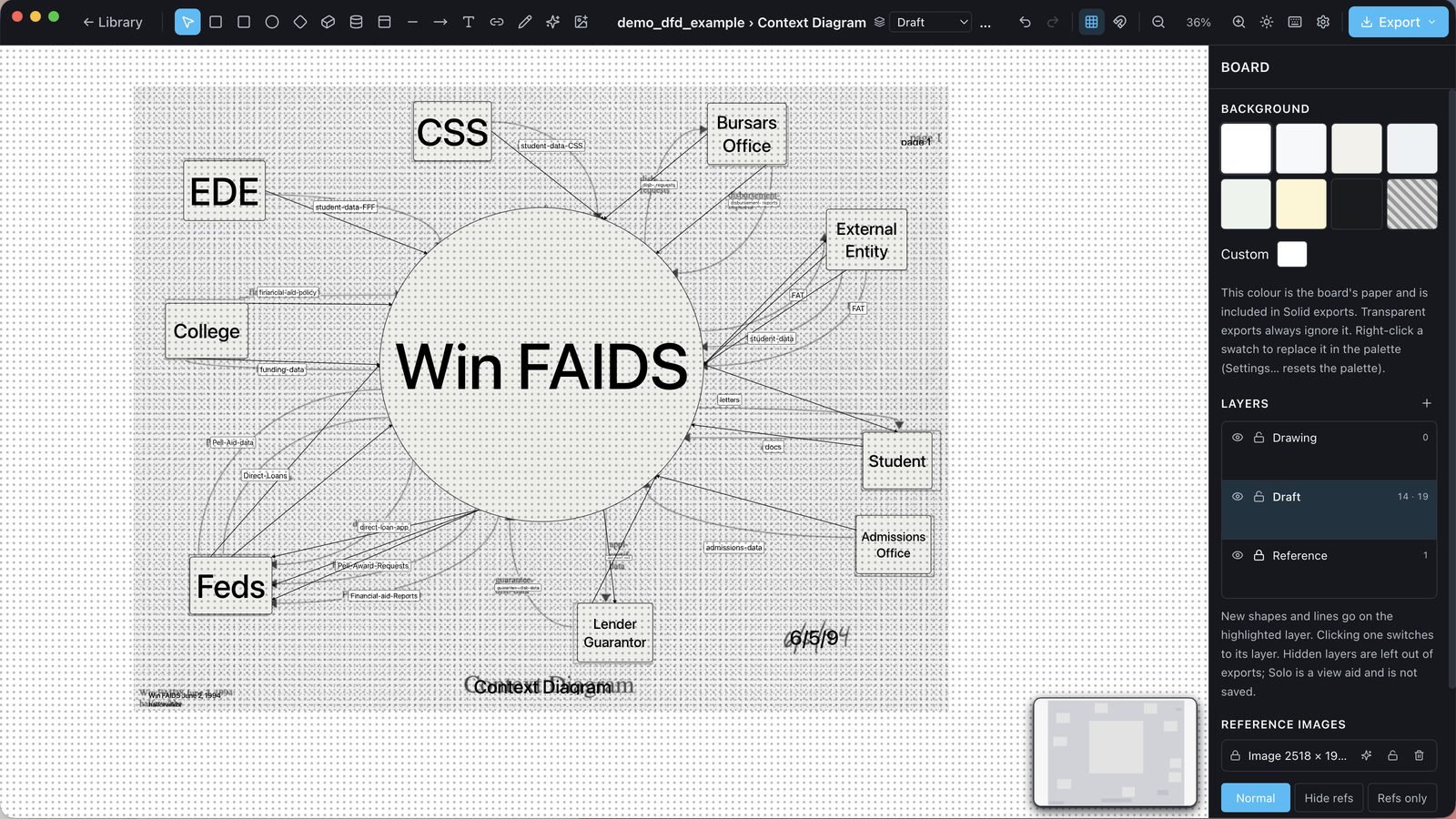
What Vectorize reads
- Rectangles, squares, ellipses and circles, diamonds, 3D boxes, data stores and collection boxes, each as that kind of shape.
- Text, with its size and color fitted to the box it occupies; a process number on a bubble becomes the first line of its label.
- Connectors with labels and head styles, attached at the connection slot where each end meets its shape, so several flows between the same two shapes stay apart.
- Rotation: a tilted shape comes back tilted, not boxed.
- Labels broken over two lines are joined; hyphenated words are mended.
What to expect: a draft, not a finished drawing. On the three decades-old diagrams shown on this page, a few minutes of editing each took the draft to the finished versions.
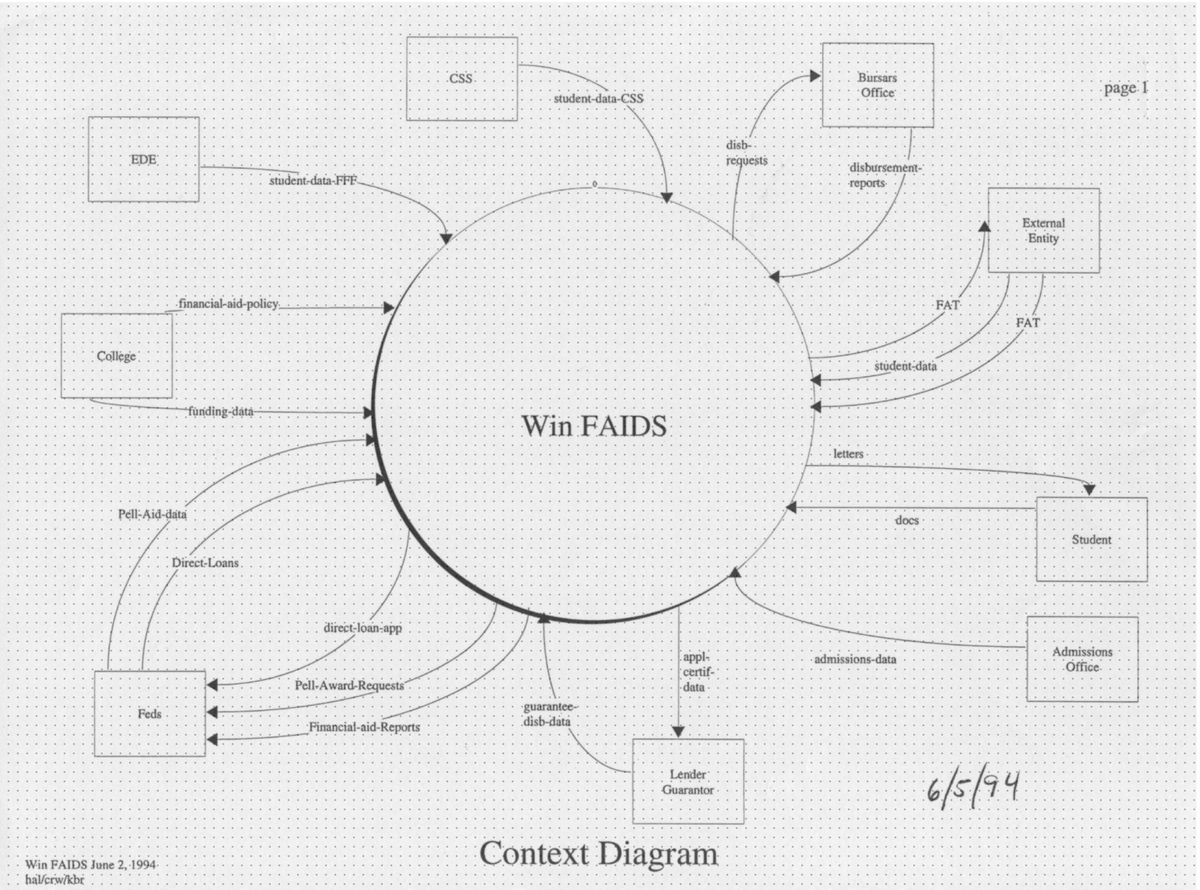
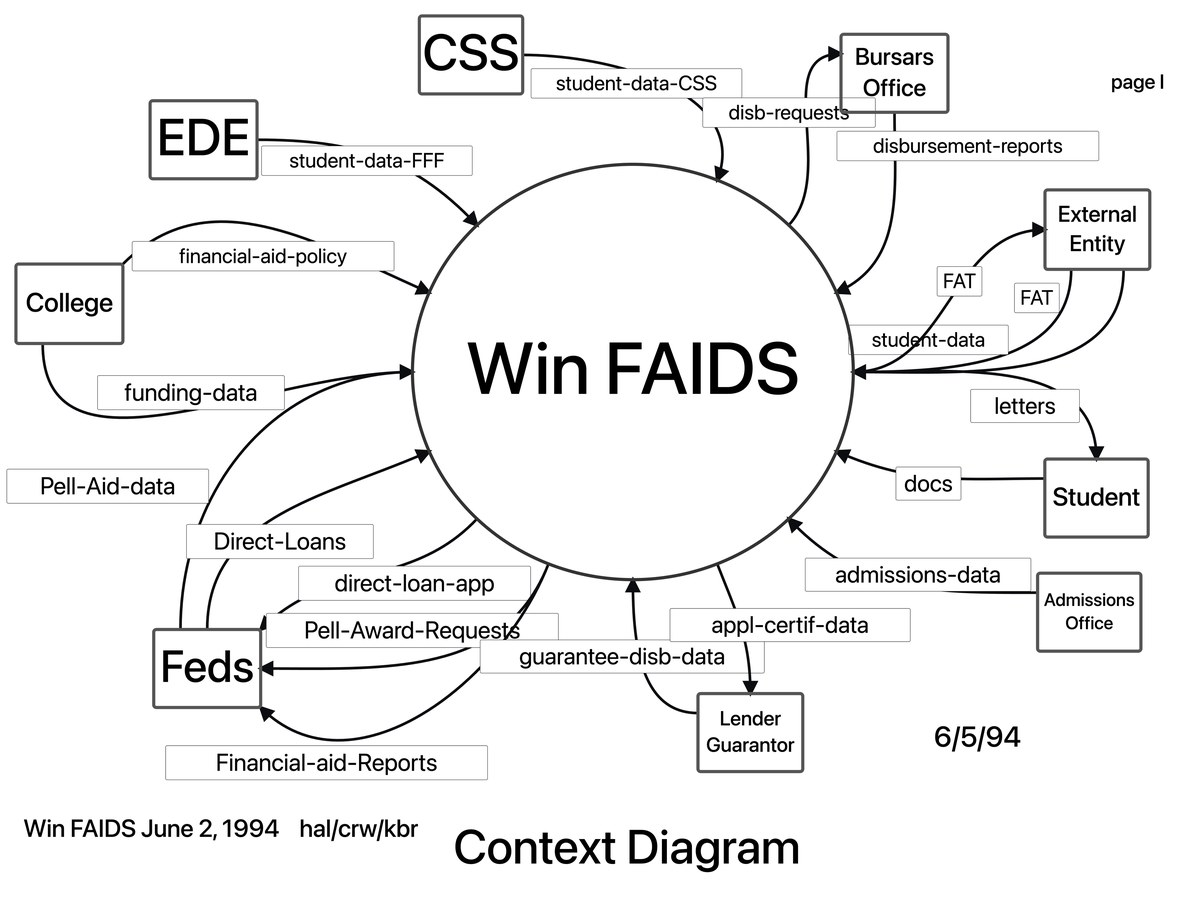
Context diagram
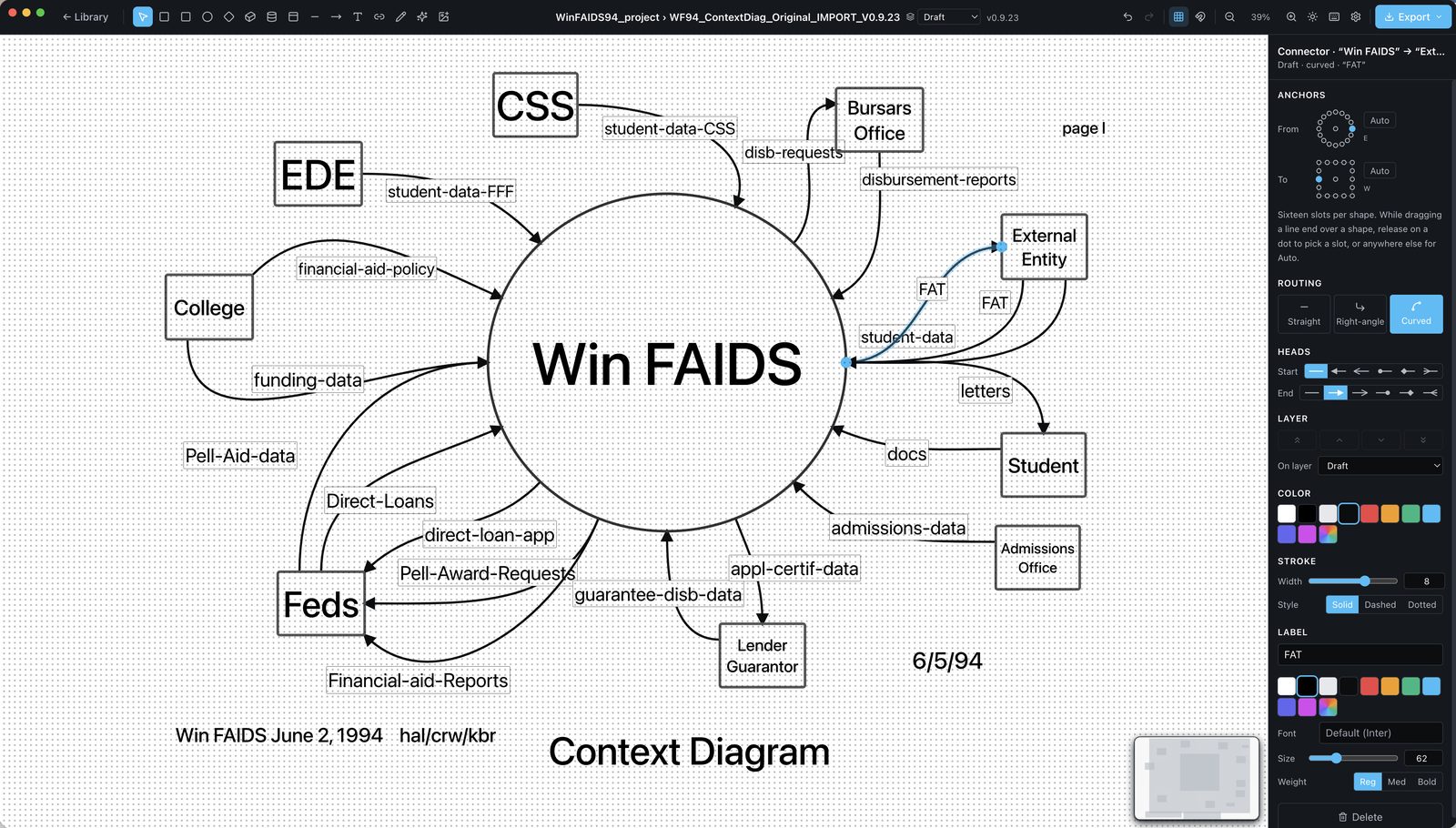
Nine external entities around one process, nineteen labeled flows. The scribbled rings became clean circles; the handwritten notes became typed labels.
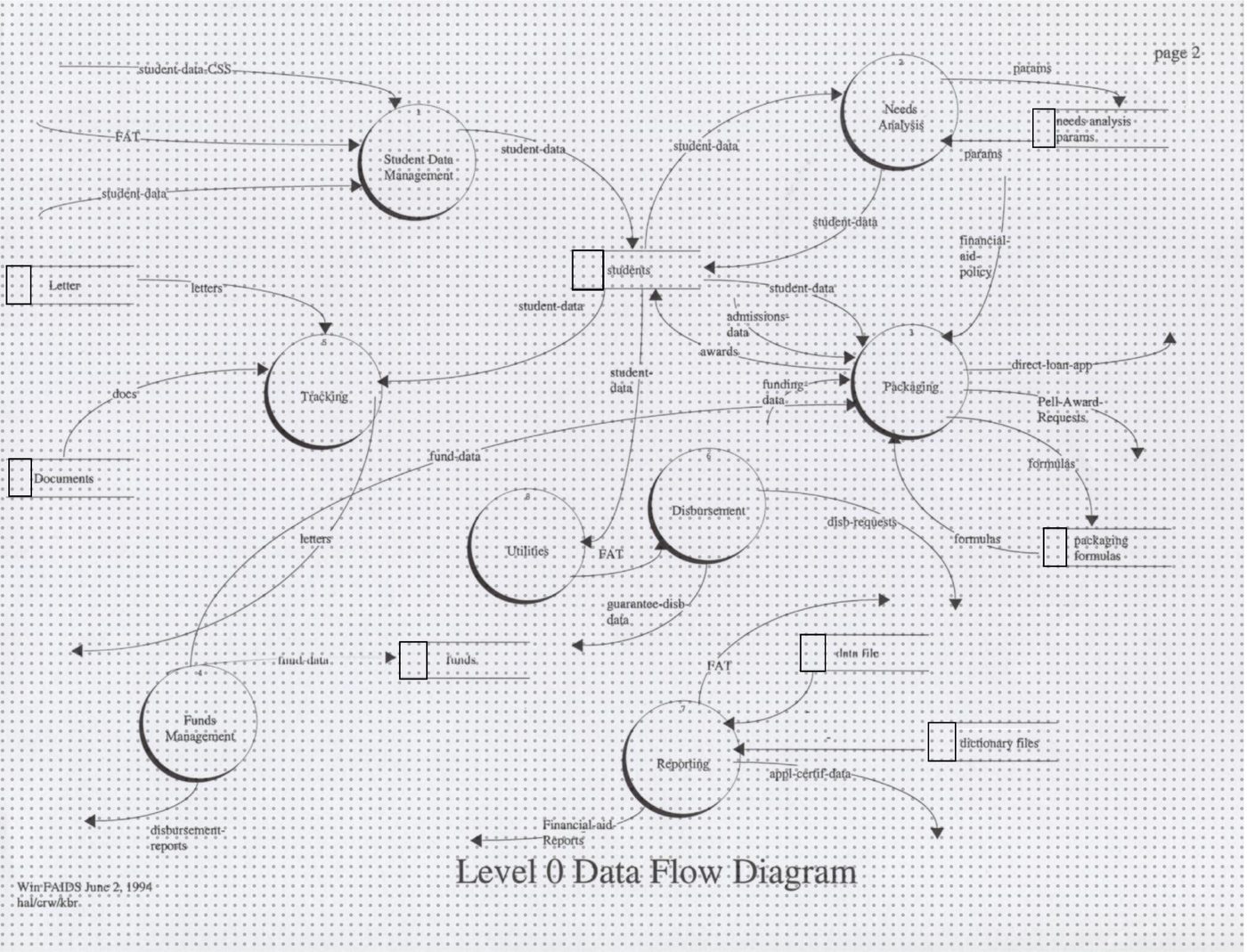
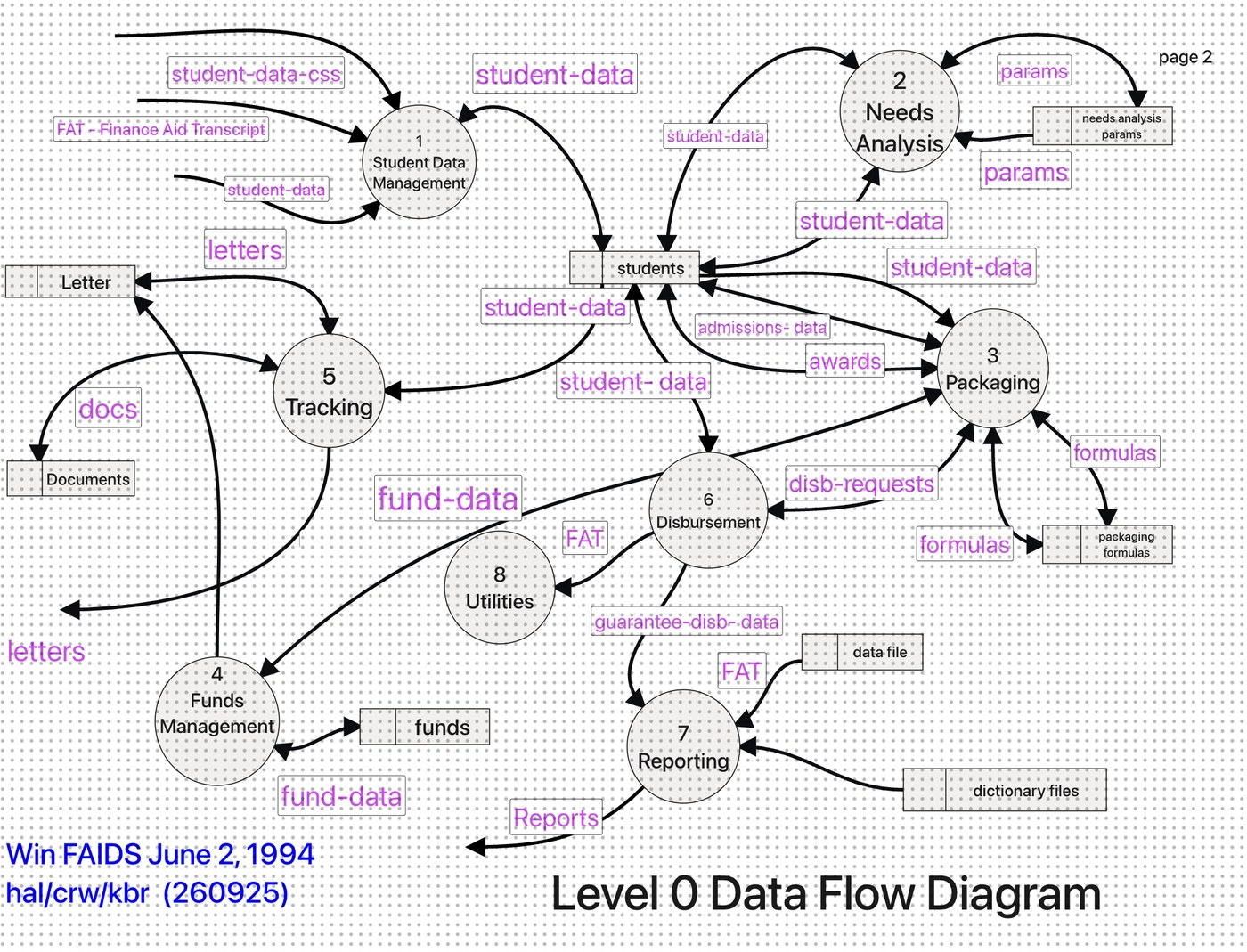
Level 0 data-flow diagram
Eight numbered processes, eight data stores, twenty-seven flows. Flow labels land where the original had them.
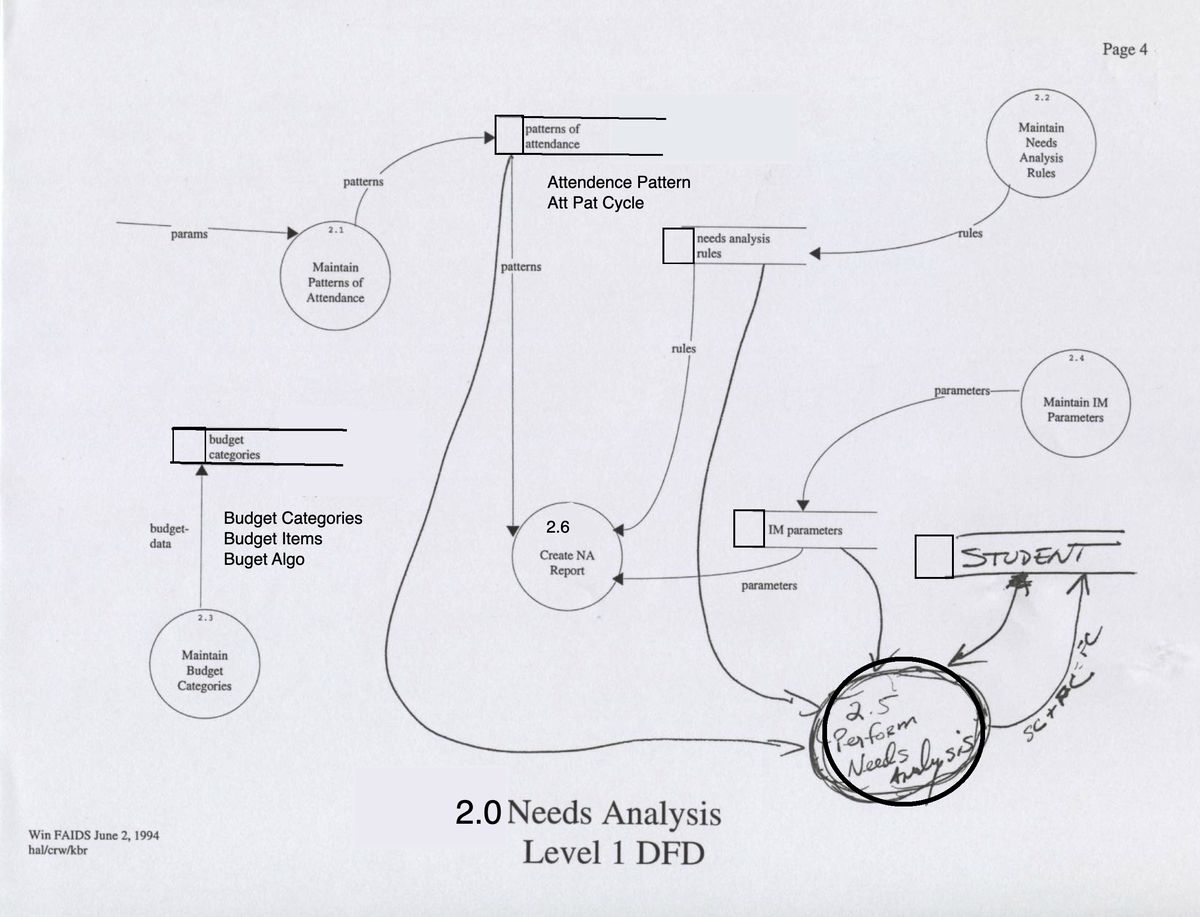
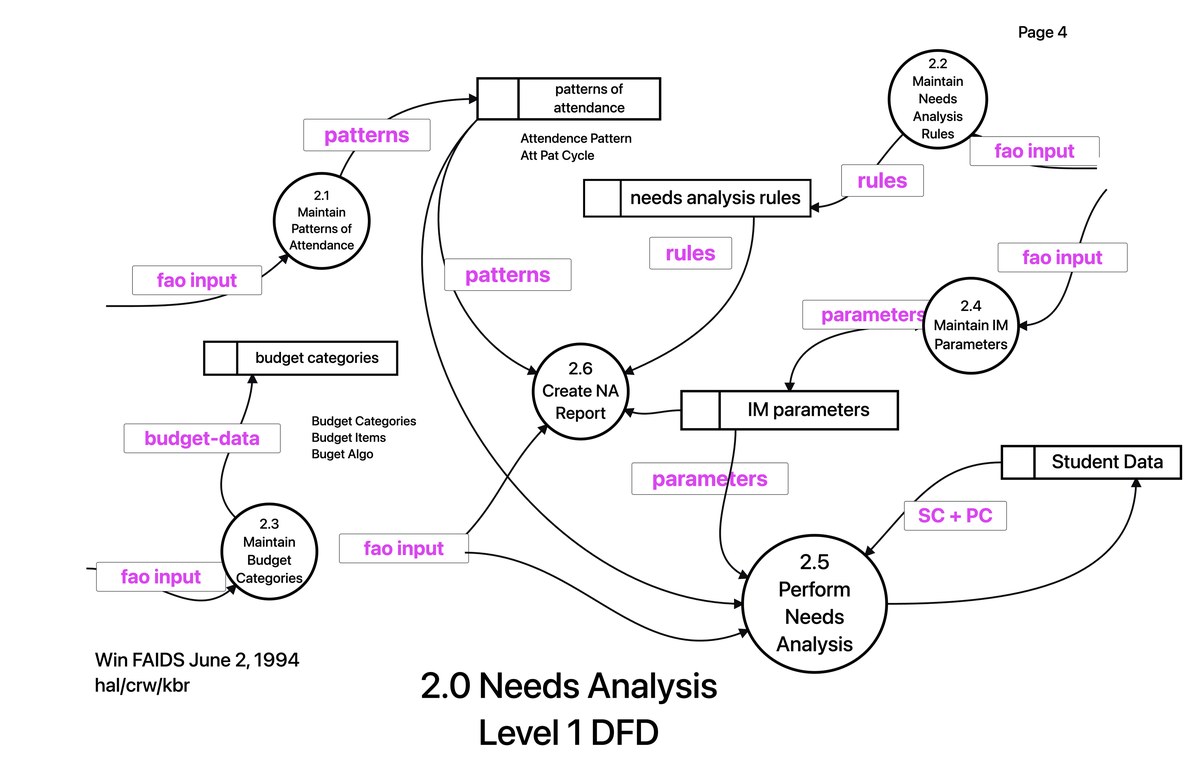
Level 1, one process expanded
A denser page with curved flows and open-sided data stores. The cleaned-up drawing exports crisp at any size, with the scan still on its own layer.
See it in motion
Three diagrams go from scan to editable drawing in a 2:43 demo: import, Vectorize, the layers, the touch-ups and the export.
Drawing
And a full diagram editor for everything new
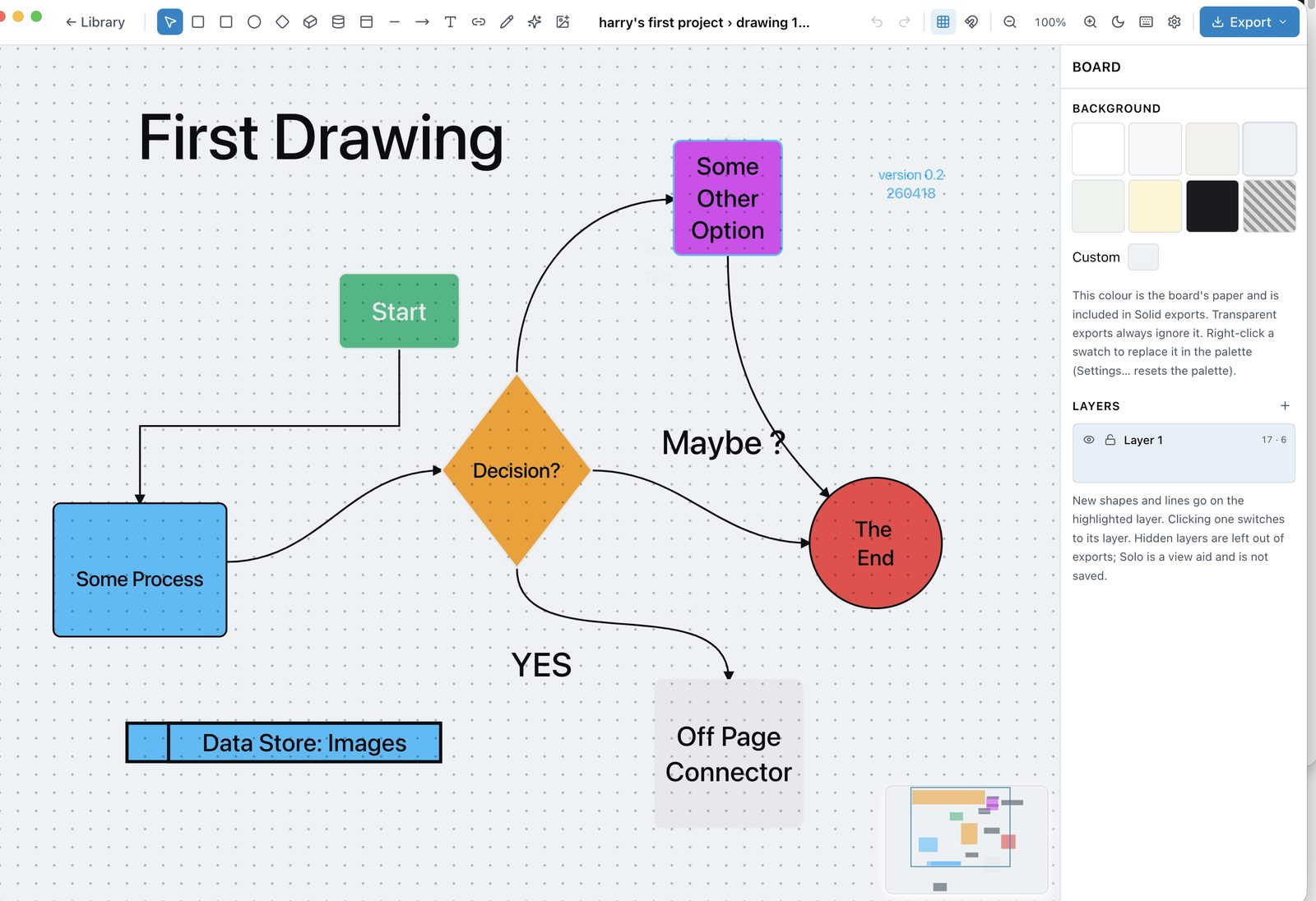
Vectorize gets the attention, but most of the time you are simply drawing. haldraw is an infinite-canvas editor in the spirit of Excalidraw and tldraw, built as a Mac app: shapes that know what they are, connectors that stay attached, named layers, and a properties panel for everything selected.

- ← Libraryprojects and boards
- SelectV
- RectangleR
- Square, locked ratioS
- Ellipse / circleO
- Diamond (decision)D
- 3D box (external entity)B
- Data storeX
- CollectionK
- LineL
- ArrowA
- TextT
- Connector, snaps to shapesC
- Pen, freehand inkP
- Icon libraryI
- Import image file⌘⇧I
- Undo / Redo⌘Z
- Dot grid · Snap to gridtoggles
- Zoom out · 100 % · Zoom in⌘− ⌘0 ⌘=
- Light / dark themetoggle
- Shortcut overlay?
- Settings⌘,
- Export ▾PNG · SVG · .haldraw
Shapes that know their kind
Rectangle, square, ellipse, diamond, 3D box, data store, collection, line, arrow, text and ink. All resizable and rotatable through 360°. The Shape row turns one kind into another in place, keeping size, style, text and connections.
Connectors that stay attached
Sixteen connection slots per shape, or Auto. Straight, right-angle or curved routing with a draggable elbow or midpoint. A head style for each end: arrow, open arrow, dot, diamond, crow's foot. Labels are draggable pills.
Text everywhere
Free text at any angle, or a centered label inside any shape that wraps as you type. Installed fonts by name, sizes 4–999, weight, alignment and vertical alignment. Exports wrap exactly as the canvas does.
Layers
Named layers with show/hide, lock, solo and reorder. Stacking within a layer with ⌘] and ⌘[; move a selection between layers with ⌘⌥]. Hidden layers stay out of exports.
Icons, images and ink
The full Lucide icon library with search; icons are movable, resizable, rotatable and recolorable. Paste a screenshot or drop image files, stored once and deduplicated. The pen draws smoothed freehand strokes.
Styles and palette
Fill, stroke color, width and dash, opacity and corner radius per shape. The palette is yours: right-click a swatch to replace it through the macOS Colors panel, app-wide. Each board has its own paper color.
Select, align, distribute
Marquee and shift-click selection, groups, copy, cut, paste and duplicate, select all. Six alignment buttons, distribute with three or more. Shift-resize scales text and stroke widths with the boxes.
Find anything
⌘K jumps to any board or project by fuzzy search. ⌘F finds shapes and line labels by text and steps through them. Tab walks every object in stacking order, panning it into view.
Canvas comforts
Infinite canvas, pan with Space-drag, zoom to fit or to 100 %, a dot grid with snap, a minimap that recenters on click, undo and redo, a dark or light theme, and a shortcut overlay on ?.
Keyboard
Shortcuts for the whole app
Press ? anywhere in haldraw for the same list. Nearly everything is reachable without leaving the keyboard.
Tools
| Select | V |
| Rectangle / Square / Ellipse / Diamond | R S O D |
| 3D box / Data store / Collection | B X K |
| Line / Arrow / Connector | L A C |
| Text / Pen / Icon library | T P I |
| Draw a line without snapping to shapes | ⌥-drag |
Canvas
| Pan | Space + drag |
| Zoom | ⌘ + scroll · ⌘= ⌘− |
| Reset zoom / Zoom to fit | ⌘0 ⌘1 |
| Find text on this board | ⌘F |
| Go to any board or project | ⌘K |
| Shortcut overlay | ? |
Edit
| Undo / Redo | ⌘Z ⌘⇧Z |
| Copy / Paste / Cut / Duplicate | ⌘C ⌘V ⌘X ⌘D |
| Duplicate the whole board | ⌘⇧D |
| Group / Ungroup · select inside a group | ⌘G ⌘⇧G · ⌥-click |
| Select all · next / previous object | ⌘A · Tab ⇧Tab |
| Nudge 1 px (10 px) | Arrows (+ ⇧) |
| Edit a shape's text | Double-click · ⌘↩ commits |
| Delete / Deselect | ⌫ / Esc |
Layers, files and settings
| New layer | ⌘⇧L |
| Bring forward / Send backward | ⌘] ⌘[ |
| Bring to front / Send to back | ⌘⇧] ⌘⇧[ |
| Move selection up / down a layer | ⌘⌥] ⌘⌥[ |
| Paste screenshot · Import image | ⌘V · ⌘⇧I |
| Import a .haldraw board | ⌘⇧O |
| Export PNG | ⌘E |
| Settings | ⌘, |
| Open a shape's link | ⌘-click |
Local first
Your work stays on your Mac
No account, no cloud, no subscription. Every project, board and image lives in one SQLite file in your Library folder, saved on every change. The only time haldraw talks to the network is when you press Vectorize, and then it talks to Anthropic with your own key.
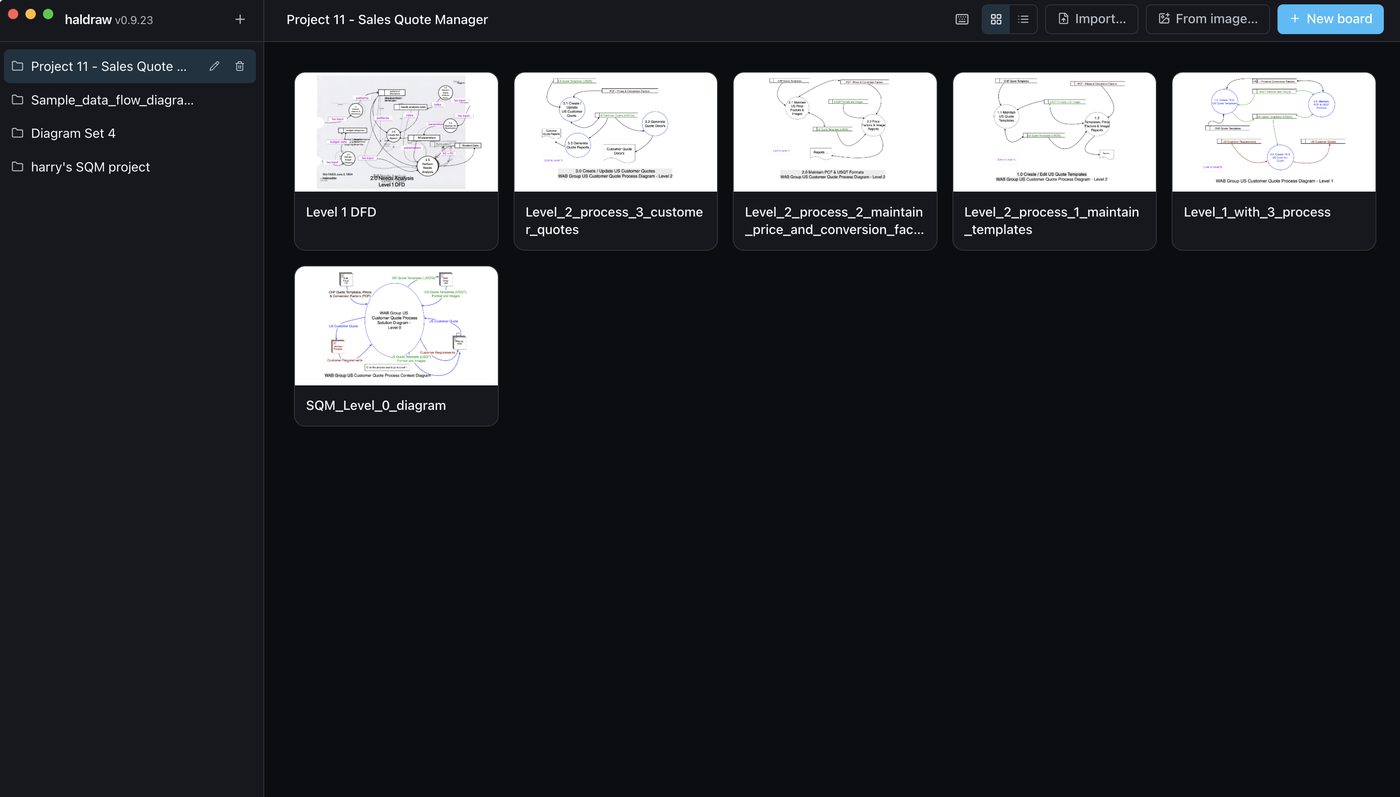
- Projects and boards, unlimited, renameable, with thumbnails and a grid or list view. Autosave on every change; a board duplicates with one keystroke.
- Daily backups of the database, newest fourteen kept, plus Back up now and Reveal in Finder in Settings. Restoring is copying one file.
- Images stored once, deduplicated by content hash, however many boards use them.
- Portable boards. A
.haldrawfile carries a whole board, reference images included, to another Mac or another person. Import it from the library or drop it on the grid. - Your API key stays in the macOS keychain. Settings shows the one command that puts it there and whether it is present; haldraw never writes it anywhere else.
Export what you need
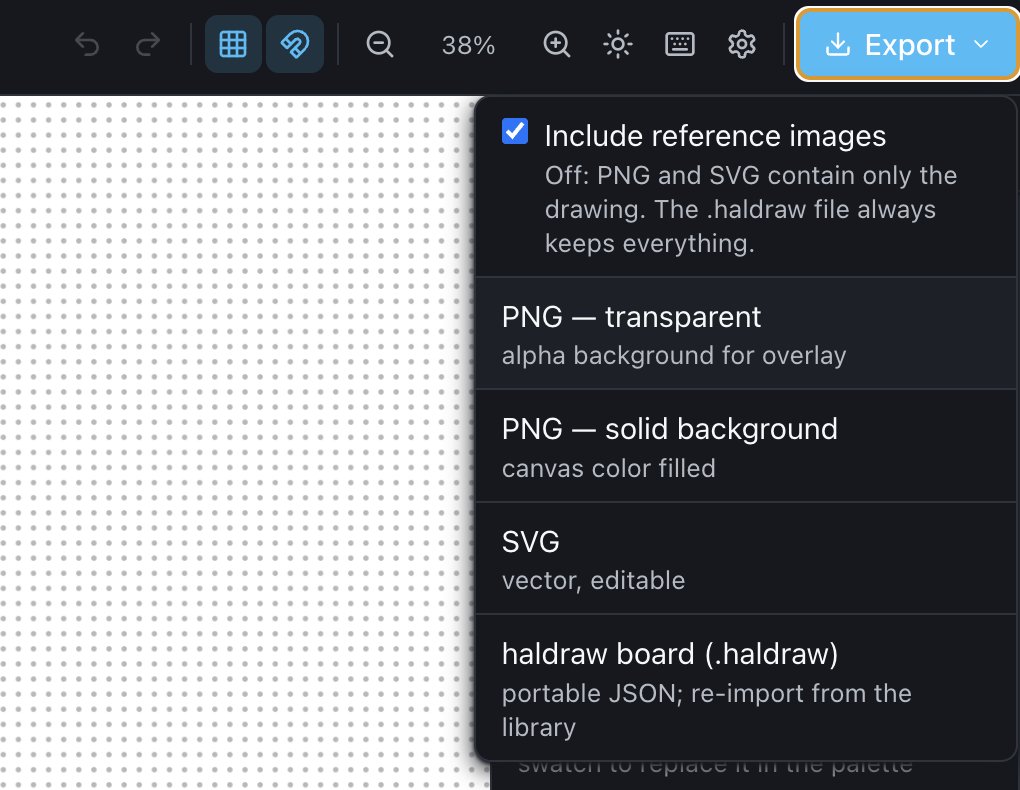
- PNG, transparent for overlaying on slides and documents (⌘E).
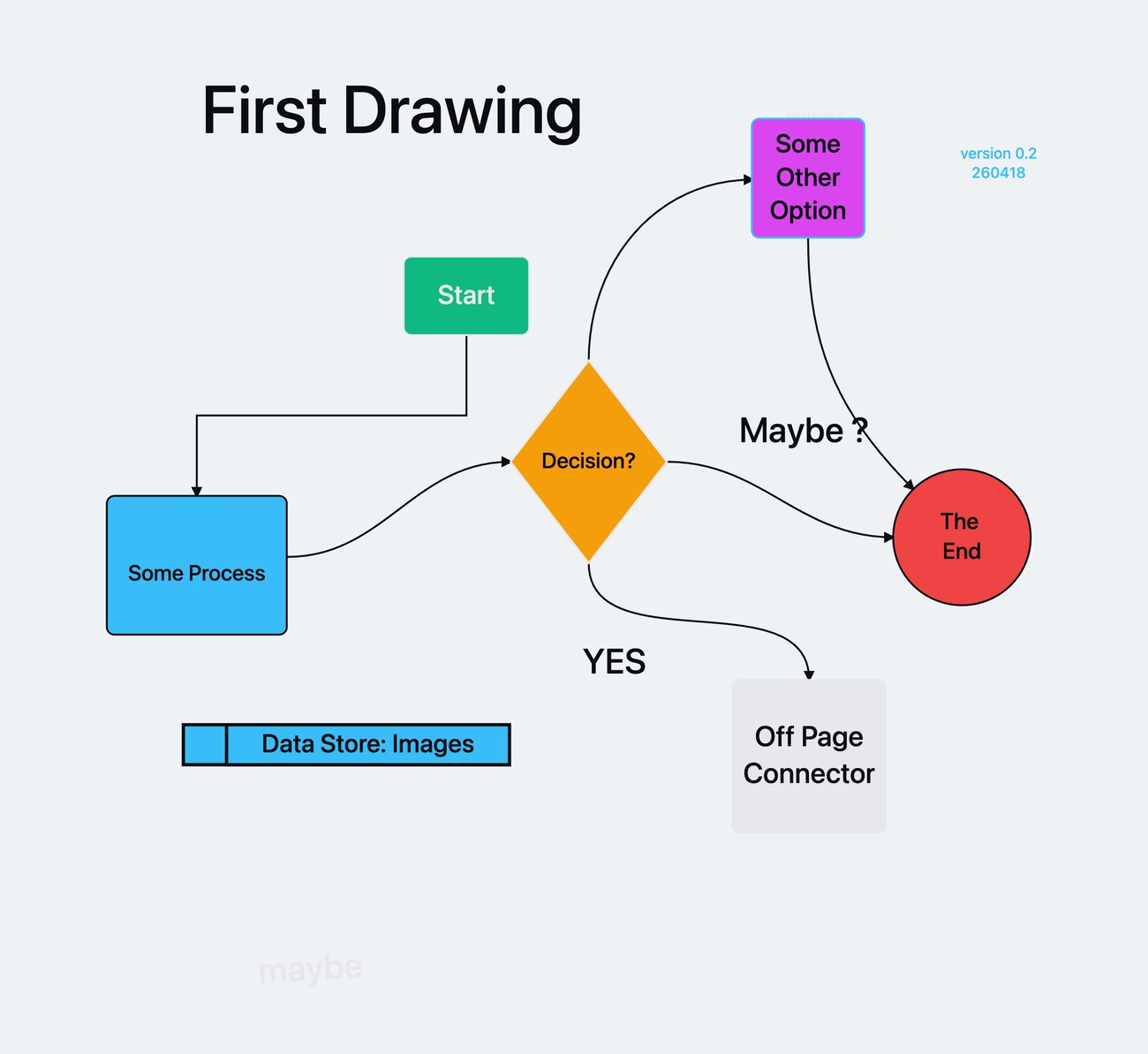
- PNG, solid with the board's paper color, like the First Drawing image above.
- SVG, vector and editable in Illustrator, Affinity, Inkscape or a browser; text wraps as on the canvas.
- haldraw board, portable JSON that re-imports anywhere.
- Include reference images: leave the scan out of a PNG or SVG, or keep it as provenance.
Early beta
Where haldraw is today
Version 0.9.23, September 2026. It is used daily for real diagrams, and it is still a beta: built for a small circle of users, changing weekly, with rough edges we would rather tell you about than have you find.
Solid today
- Drawing, connectors, layers, styles, find, undo, export: the everyday editor.
- Vectorize on scans of printed box-and-arrow diagrams; flowcharts and data-flow diagrams are the tested cases.
- Large scans, several thousand pixels across, as references; they are downsampled for display, not for Vectorize.
- Autosave, daily backups, portable
.haldrawfiles. - Dark and light themes; the macOS Colors panel for any color.
Not yet, or rough
- macOS on Apple silicon only. The build is installed by hand from a DMG and is not yet signed, so macOS asks before the first launch.
- Vectorize needs your own Anthropic API key and is billed to it by Anthropic; results on hand-drawn sketches and on other tools' renderings are less tested than on scans of printed diagrams.
- Single user, one machine at a time. No shared boards or live collaboration.
- No templates or stencils, presentation mode, Markdown in text, or outline view yet. Grid spacing is fixed.
- Connector auto-routing is simple; it does not yet route around shapes.
To run it you need an Apple silicon Mac. To vectorize you also need an Anthropic API key; drawing needs nothing else.